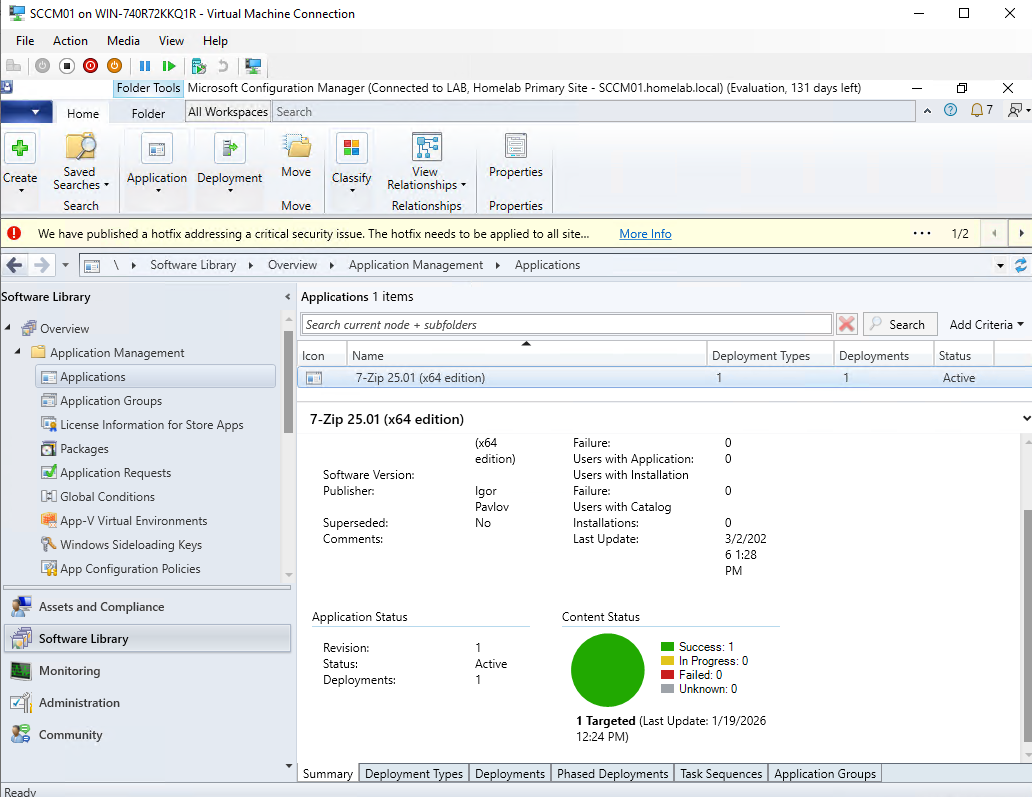
Figure: SCCM Dashboard displaying 7-zip deploying to my test collection
In my previous post, I built a Group Policy framework that secured my Active Directory environment - locking down computer labs, enforcing password policies, redirecting user data to network storage.
That covered the security side of managing endpoints. But Group Policy alone doesn’t answer a fundamental enterprise question: how do you actually get software onto machines? How do you make sure 500 workstations are running the latest security patches? How do you know which computers are compliant and which ones aren’t?
For a lot of organizations today, the answer is Intune - and honestly, that’s where I started too. In a previous post, I walked through deploying custom applications through Intune using the Win32 app model. It works well, it’s cloud-native, and it’s clearly where Microsoft is pushing the industry.
But the more I worked with Intune, the more I realized I was missing context. Intune abstracts a lot of what’s happening under the hood. SCCM, which Intune’s deployment model is largely built on top of, makes all of it explicit. Software Update Points, WSUS integration, deployment rings, maintenance windows, compliance baselines. These aren’t Intune inventions. They’re concepts that have existed in enterprise endpoint management for years, and SCCM is where they live in their most visible form.
So I built it from scratch in my homelab. Not because SCCM is the future, but because understanding it makes everything else make more sense.
System Center Configuration Manager (now Microsoft Endpoint Configuration Manager) is the enterprise standard for software deployment, patch management, and endpoint compliance. It’s been around for decades and is still running in many mid-to-large Windows environments. So I built it from scratch in my homelab.
This post covers the full journey: the installation challenges with SQL Server, getting clients connected, deploying software, and setting up the patch management pipeline with WSUS. I’ll be honest about where the lab hit its limits too - running SCCM on modest hardware (16gb RAM) has real implications that are worth documenting.
This isn’t a setup guide. Microsoft’s documentation covers the steps. This is about what SCCM actually does, why it’s configured the way it is, and the practical lessons that don’t show up until you’re actually in the console troubleshooting at 11pm.
The Lab Environment
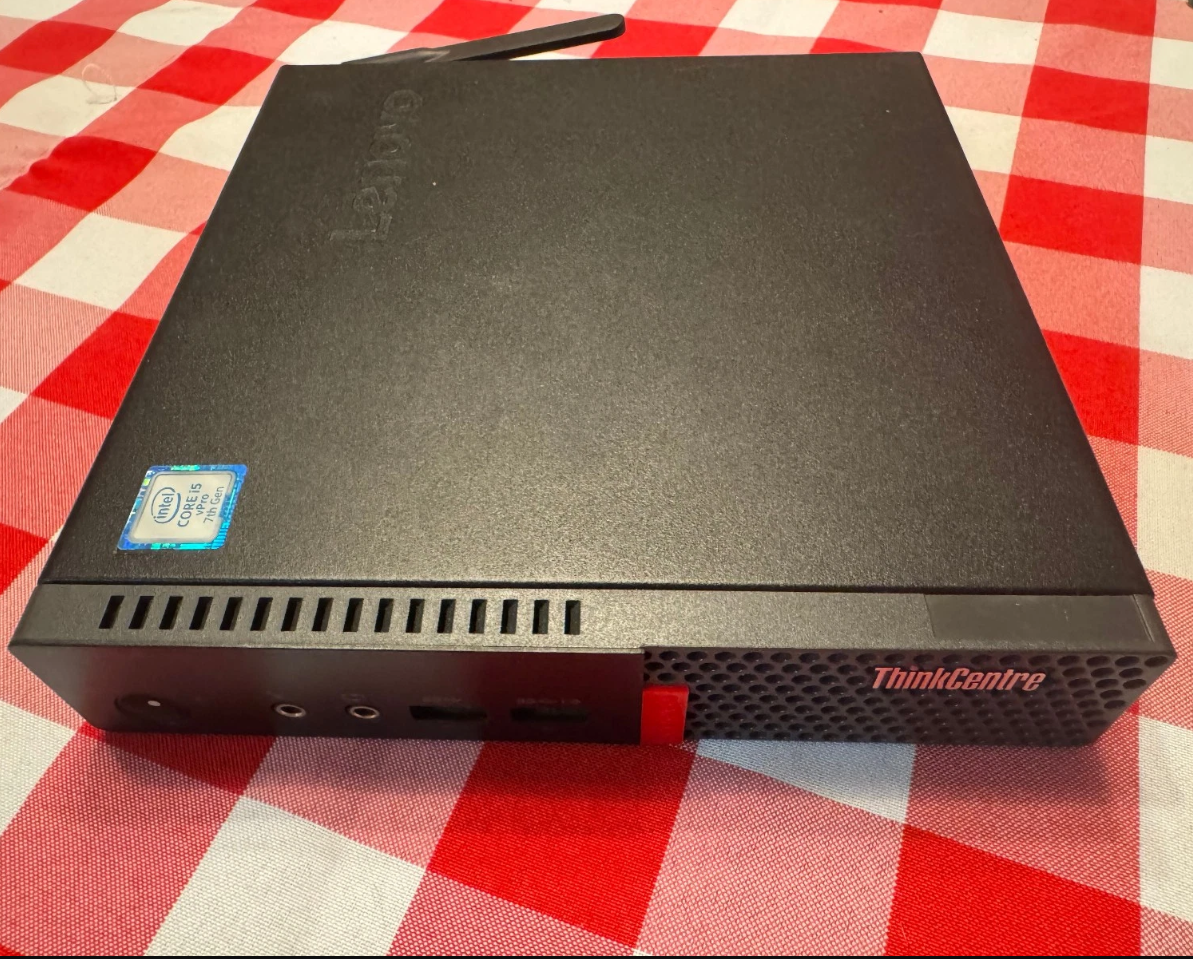
Figure: Leveno ThinkCentre Tiny M720q running Windows Server 2022
Same ThinkCentre Tiny running Windows Server 2022 that I’ve used throughout this series. The existing infrastructure:
- Domain controller running
homelab.localwith 500+ users across 26 OUs - Group Policy framework from the previous post
- Windows 10 client VMs for testing
For SCCM, I added a dedicated VM: SCCM01, running Windows Server 2022 with SQL Server 2022 installed. The SCCM primary site server and SQL instance live here, domain-joined to homelab.local.
Installation Challenges
SCCM installation has a lot of prerequisites and the setup wizard won’t let you proceed until they’re all satisfied.
Most of my time was spent on SQL Server — I’d initially installed SQL Express, not knowing SCCM explicitly doesn’t support it. Swapping that out for SQL Server Developer edition (free for lab use) got me past the database check, then a few smaller things: sysadmin rights on the SQL account, TCP/IP enabled for the instance, mismatched ports. Once the prerequisite checker was happy, the schema extension ran against AD and installation completed.
Client Enrollment
An SCCM environment with no connected clients is just an empty console. The next step was getting Windows 10 VMs to check in and become managed endpoints.
SCCM discovers clients through AD System Discovery, it scans Active Directory and finds computer accounts. The computers show up in the console, but they’re not managed yet. “Discovered” and “managed” are different states.
To actually manage a machine, the SCCM client (CcmExec) needs to be installed on it. You can push this from the console: right-click a discovered device, Install Client, and SCCM handles the deployment over the network. Once installed, the client checks in on a schedule, receives policies, and reports its status back.
With the client installed on my Windows 10 VMs, they showed up as active managed devices. That’s when the console gets useful, you can see hardware inventory, installed software, and compliance status for each machine.
Software Deployment: The Core Use Case
The first real test of my new SCCM environment is deploying software. I started with 7-Zip - a simple MSI, no complex dependencies, easy to verify success. This is actually the same third party software that I installed (a lot more easily) via intune when I was working through that lab so that I could compare the processes more clearly.
The SCCM application model has a few concepts worth understanding:
Detection Methods tell SCCM whether the software is already installed on a machine. Without this, SCCM has no way to know if a deployment succeeded or if the application was manually installed by someone else. For 7-Zip, the detection method checks for the registry key that the installer creates. If the key exists, SCCM considers it installed.
Collections are how you target deployments. Rather than deploying to individual machines, you deploy to collections, groups of devices defined by query rules or direct membership. I created a Pilot collection with one VM for initial testing, and a broader Production collection for everything else.
Required vs. Available deployments Required means SCCM installs the software automatically by a set deadline, used for mandatory software and security tools. Available means it shows up in Software Center and users can install it on-demand, used for optional applications. Same software package, different deployment intent.
I deployed 7-Zip as Required to the Pilot collection, set a deadline, and watched the Monitoring workspace. The deployment moved from “In Progress” to “Success” as the client installed it and reported back. That compliance percentage ticking up in the console is the payoff, you can see exactly which machines have the software and which don’t, across your entire environment.
What this replaces in production: Manual software installation, emailing users download links, or walking to individual desks. SCCM deploys software at scale, on a schedule, with verification.
Patch Management
I didn’t fully appreciate why patch management was its own discipline until I set up the SUP role and started working through it. On a home network, Windows Update just runs. In an enterprise, “just let it run” isn’t an option.
You need to know which machines are missing critical patches, when updates are going to install, and what happens if something breaks. SCCM with the Software Update Point role is how you get that control.
The Architecture
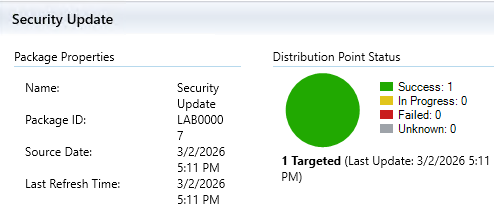
Figure: Software update deployed to distribution point (my SCCM server in this case) which is then used as the location where clients can download the update from internally.
Patch management in SCCM involves three components working together:
WSUS (Windows Server Update Services) syncs update metadata from Microsoft. It’s the database of available updates, what exists, what it fixes, what systems it applies to. WSUS doesn’t deploy anything on its own; it’s a catalog.
Software Update Point is the bridge between SCCM and WSUS. It’s an SCCM site system role that tells SCCM what updates exist and which clients need them. SUP is how the management layer talks to the update catalog.````````````````
SCCM creates the deployment rules, schedules, and maintenance windows. It’s the enforcement and reporting layer, it tells clients what to install, when to install it, and tracks whether they complied.
The flow: Microsoft releases updates, WSUS syncs the metadata, SUP feeds that into SCCM, SCCM deploys to client collections, clients install and report compliance.
Configuring the Software Update Point
Adding the SUP role means configuring what WSUS syncs from Microsoft. Not everything, you scope it to what your environment actually runs.
I configured sync for:
- Products: Windows 10
- Classifications: Critical Updates, Security Updates, Definition Updates, Update Rollups
- Schedule: Daily sync
Critical and Security updates are non-negotiable, these are the patches addressing actual vulnerabilities. Definition Updates cover Windows Defender signature files, which update frequently. Update Rollups bundle quality fixes together. I skipped Feature Packs and optional drivers.
After the initial sync completes, the All Software Updates view populates with every applicable update Microsoft has released for the configured products. In practice this is hundreds of updates going back years. Filtering to recent releases and “Required” (patches your clients actually need) makes it manageable.
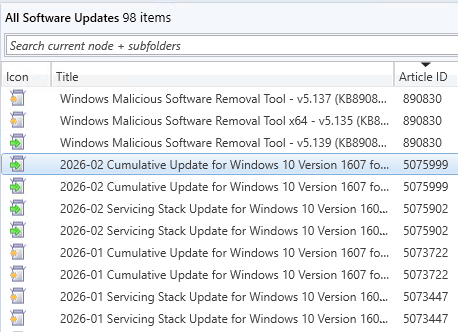
Figure: 98 Avalable software updates tracked by SUP just for Windows 10
My workflow strategy
Pilot collection first. One or two VMs receive updates before anyone else. If a patch breaks something, it breaks in the lab, not on 200 workstations. Microsoft’s Patch Tuesday record is good but seemingly getting worse and worse over time. Bad patches happen, and discovering them on a test machine is the entire point of a pilot phase.
Monitoring compliance. The Monitoring workspace shows deployment status across all targeted machines: how many installed successfully, how many are pending, how many failed. This is the reporting capability that would be crucial during an audit or a security incident, you can show exactly which machines were patched and when.
The reason for all of this structure is change management. In a production environment, a surprise reboot during business hours is a problem. An untested patch breaking a line-of-business application is a bigger problem. The pilot-then-production approach with maintenance windows exists to prevent both.
What the Lab Revealed
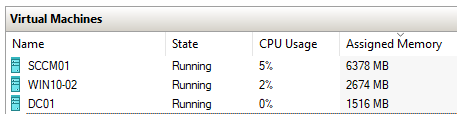
Figure: Three VM’s (not including host) using the majority of the systems 16gb ram. SCCM (also running SQL Server) is especially hungry
Running SCCM on a ThinkCentre Tiny with limited RAM made one thing immediately clear: SCCM is memory hungry. The primary site server and SQL instance together consume substantial memory, which left minimal headroom for client VMs.
Getting client VMs started while SCCM was running meant shutting down SCCM, starting the client, then bringing SCCM back up, which became a major restraint.
Lessons Learned
SCCM’s Complexity Is Its Value
SCCM has a real learning curve. Before anything useful happens, you’re configuring site systems, setting up discovery methods, figuring out why clients aren’t checking in. It took a while before the console felt like it made sense.
What helped was treating each feature as a solution to a specific problem. Collections exist because you can’t just deploy software to “all computers” and call it done. Maintenance windows exist because someone learned the hard way what happens when patches reboot servers at 2pm on a Tuesday. Once I started thinking about it that way, the complexity stopped feeling arbitrary.
Client Health Is a Discipline
The SCCM client (CcmExec / SMS Agent Host service) is what actually makes a machine managed. No client, no communication - it stops receiving policies, stops reporting compliance, just disappears from your picture of the environment.
I ran into this early on. One of my VMs showed up in the console as enrolled, but the client service wasn’t running. The files were there, it just hadn’t registered properly. From the console’s perspective it looked fine — “client installed” — but nothing was actually happening on the machine.
That’s what client health monitoring is for. SCCM has it built in, and it exists because enrolled doesn’t mean healthy. In a real environment machines get reimaged, services crash, something conflicts with the installation. You can’t just assume a device stays managed because it was managed last week.
Logs Are The Debugging Path
When SCCM isn’t behaving as expected, the answer is almost always in a log file. SCCM logs everything: client communication, policy download, software installation attempts, update compliance checks.
Key logs I referenced during setup:
CCMSetup.log- client installationClientIDManagerStartup.log- client registration with the siteUpdatesDeployment.log- update deployment activity on clientsWCM.log/WSUSCtrl.log- Software Update Point and WSUS communication
The pattern is the same as troubleshooting anything in Windows infrastructure: check the logs, find the actual error, work backward from there. I found that SCCM’s logging was extremely detailed which help me overcome some of the issues I had during installation.
The Big Picture
SCCM completes the endpoint management picture that Active Directory and Group Policy started.
AD handles identity: who users are, what groups they belong to, how they authenticate. Group Policy handles configuration: what users can do, how their machines are secured. SCCM handles lifecycle: what software is installed, what updates are applied, who’s compliant.
These three systems are deeply integrated and most Windows environments run all of them. AD for identity, Group Policy for configuration, SCCM for lifecycle. Getting hands-on with all three in the lab gave me a clearer picture of how they fit together than any amount of reading would have.
The resource constraints I hit are worth mentioning too. Juggling the SCCM server and client VMs on the same hardware meant constant tradeoffs — shutting one thing down to start another. It’s an obviously artificial limitation, but it did make SCCM sizing feel like a real concern rather than an abstract one. In production you’re not running everything on a single ThinkCentre, but the underlying question of “do we have enough headroom for this?” doesn’t go away.
What’s Next
SCCM wraps up the on-premises infrastructure foundation I set out to build. The series so far:
- Active Directory with a realistic OU structure
- Group Policy security framework
- SCCM for software deployment and patch management
The natural next step is the cloud layer. Most organizations aren’t purely on-premises anymore, they’re running hybrid environments with Azure AD, Intune, and M365. The next posts will cover building out that cloud infrastructure and connecting it to the on-premises environment I’ve already built.
Azure AD Connect for identity sync is the logical starting point, then Intune for cloud-based endpoint management, then figuring out how SCCM and Intune actually coexist in a hybrid setup. That’s what the next posts will likely cover.
Tags: SCCM, Windows Server, Patch Management, Endpoint Management, Homelab, Active Directory